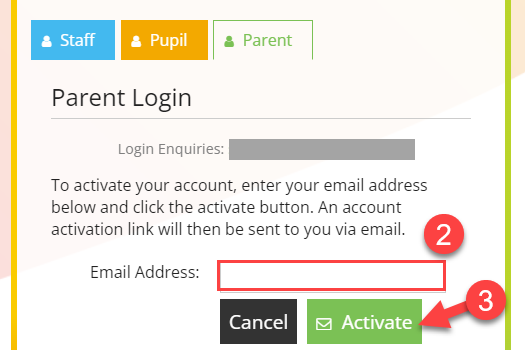
Having clicked the green Parent tab, you need to activate a SOCS account and create and manage your own password.
STEP 1
Click ACTIVATE ACCOUNT
STEP 2
You must enter the email address that you have given to the school, it must be typed correctly and match.
STEP 3
You will then receive an email from SOCS with a link that you need to follow to create your password. It can take several minutes for the email to be sent and received.
It could end up in your junk folder so worth checking (adding 'noreply@misocs.com' to your safe senders list should prevent this)
Click here to activate your account - this will allow you to create a password:
STEP 4
You can then login and use SOCS and will land here.
If you forget your password (after you have activated your account) you can use the FORGOT PASSWORD link on the parent login page.